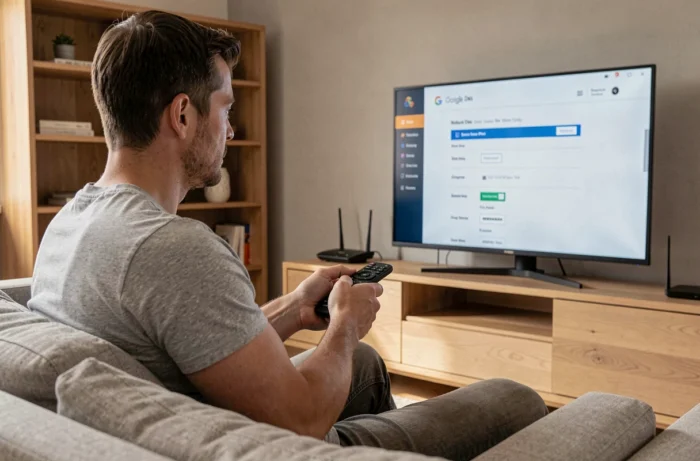
The Freebox Pop features a Player running on Google TV, which means that every function of the box (downloading apps, syncing preferences, voice commands) depends on a Google account linked to the device. Accessing the Google settings of this Player allows you to manage permissions, related services, and the account used on the television.
Google Account and Pop Player: What Happens on a Shared TV
The Freebox Pop Player functions like an Android tablet connected to a screen. The Google account associated during the initial setup becomes the main account. All installed apps, YouTube history, Google Play purchases, and content recommendations are linked to this account.
On a TV used by multiple people, the risk is real: another household member can change preferences, delete apps, or make purchases from the main account. Google TV does not offer a user session isolation like on a computer.
To access the Google settings on the Freebox Pop, navigation is done via the remote control: Settings menu, then Accounts and Sign-in. It is in this section that the active Google account appears, with the option to remove it or add another.
YouTube recently rolled out a four-digit PIN lock to protect profiles on the TV app. This feature prevents a child or roommate from using a YouTube profile that does not belong to them. Activation is done directly in the YouTube app settings on the Player.
Accessing Google Settings from the Freebox Pop Remote
The Pop Player remote has a dedicated settings button (gear icon) and a Google Assistant button. These two accesses lead to different sections of the system.
Path to Account Settings
From the Google TV home screen, go to the profile icon in the top right corner. A press opens a panel displaying the active Google account. Select “Manage your Google Account” to access security, privacy, and permissions options related to this account.
The system settings of the Player are located elsewhere: press the gear button on the remote (or navigate to Settings from the home screen). You will find network settings, display, sound, and the “Devices and Sharing” section there.
Google Assistant Settings on the Player
Google Assistant is enabled by default on the Pop Player. To adjust its settings (language, voice command history, connected devices), the path is as follows:
- Open Settings from the home screen
- Select “Google,” then “Google Services on this device”
- Choose “Search, Assistant, and Voice Commands” to modify voice assistant preferences
It is in this section that you can disable voice history or limit the personalized results displayed on the television.
Google Home Does Not Detect the Freebox Pop: Diagnosis and Correction
The Google Home app on smartphone normally allows you to detect and control the Pop Player remotely. When the device does not appear in Google Home despite a functional network connection, several technical causes are possible.
The Pop Player and the smartphone must be on the same Wi-Fi network. If the Freebox Pop broadcasts two bands (2.4 GHz and 5 GHz) with different names, ensure that both devices are using the same access point. A smartphone connected on 5 GHz will not see a Player connected via Ethernet or on the 2.4 GHz band if network isolation is active.
Firmware updates may also come into play. Free recently deployed a patch (version 4.12.4 then 4.12.4.1) that fixed reconnection issues after a network interruption. A Player with outdated firmware may fail to announce itself on the local network.
- Check the firmware version in Settings, section “About,” then “System Update”
- Restart the Pop Player (physically unplug it for about ten seconds)
- In Google Home, remove the device if it is listed as “offline,” then restart detection
- Ensure that the Google account on the smartphone is the same as the one configured on the Player
Freebox OS and Google Settings: Two Interfaces Not to Be Confused
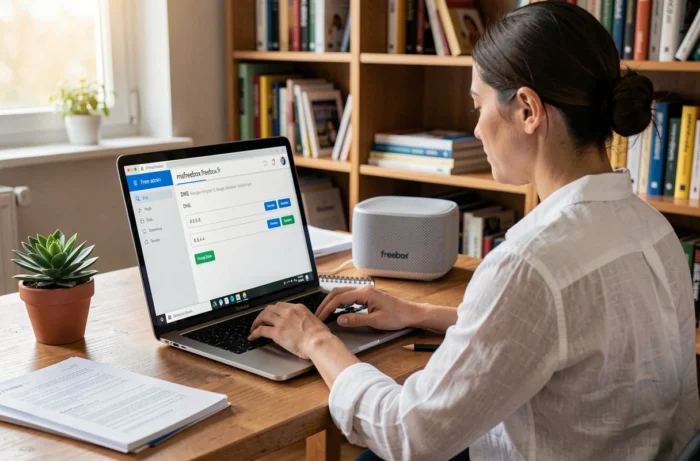
Freebox OS, accessible from a browser at mafreebox.freebox.fr, manages the server box (router, Wi-Fi, storage, parental control). It is the network administration interface, not that of the Player.
The Google settings of the Pop Player are not accessible from Freebox OS. These are two separate systems: Freebox OS manages the internet connection, while Google TV manages the apps and the Google account of the Player. The 4.12.4 update added an option in Freebox OS to configure the domain used by devices on the local network, which can facilitate the identification of the Pop Player on the home network.
The 100% local configuration via Freebox OS (from the computer connected to the Free network) remains the only method to modify advanced network settings. For everything related to Google (account, Assistant, apps), the remote control or Google Home serves as the interface.
Protecting Your Google Account on a Shared TV
On a television used by the whole family, a few settings limit the risks associated with sharing the main account.
Enable PIN lock in YouTube to protect your profile. Disable purchases without confirmation in Google Play (Settings, then “Authentication for purchases”). Each purchase will then require entering the account password.
If a second user needs their own apps and recommendations, add a second Google account from the Player’s settings instead of sharing the main account. Switching between accounts is done from the profile icon on the home screen, without resetting the device.
The distinction between Freebox OS for the network and Google TV for services remains the key point to remember. A detection issue in Google Home relates to the network (thus Freebox OS and Wi-Fi configuration), while an account or app issue is resolved directly on the Player with the remote control.