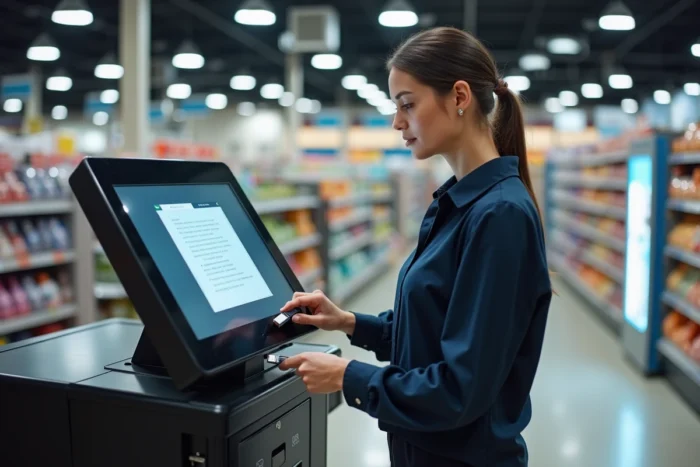
We’ve all been in that situation: a form to submit on the same day, an urgent request for a photocopy of an ID card, or a school file to print while the home printer refuses to cooperate. The printing kiosks installed at Carrefour cater to these occasional needs, right during your shopping. The service, called Copy ME in some stores, allows you to print, photocopy, or scan documents in a self-service manner.
Accepted file formats and media at Carrefour kiosks
Before heading to the store, make sure your document is in a compatible format. The kiosks generally accept files sent from a USB drive or a smartphone. The transfer from the phone is done via a wireless connection or an online upload on the kiosk’s interface.
A common pitfall involves files in unusual formats. A standard PDF poses no problem, but a file created with specific layout software may not display correctly. It is recommended to convert any document to PDF before heading out.
To delve deeper into the various steps and better anticipate the cost of each type of printing, the document printing service at Carrefour outlines the complete procedure, from format selection to payment at the checkout.
Another point to keep in mind: the kiosks offer printing in color and black and white, single-sided or double-sided. The choice between these options directly impacts the pricing. If your document does not require color, switching to black and white significantly reduces the cost per page.
Printing from a smartphone at Carrefour: the practical method
You arrive at the kiosk, smartphone in hand, and the question arises: how to send the file? Two scenarios present themselves depending on the model of the kiosk installed in the store.
Transfer via the kiosk’s online interface
Some kiosks display a QR code or a URL to enter in the phone’s browser. You then access a download page where you select the file stored on your mobile. The document appears on the kiosk screen a few seconds later.
Keep your file accessible in the phone’s file manager, not buried in an email attachment. This avoids searching for five minutes in front of the screen while other customers wait.
Transfer via USB drive
If wireless transfer poses a problem (unstable store Wi-Fi, file too large), the USB drive remains the most reliable solution. Plug it in, select, and print. Feedback varies on the speed of USB detection depending on the kiosks, but the process works with most drives formatted in FAT32.
In-store printing prices: black and white, color, and copies
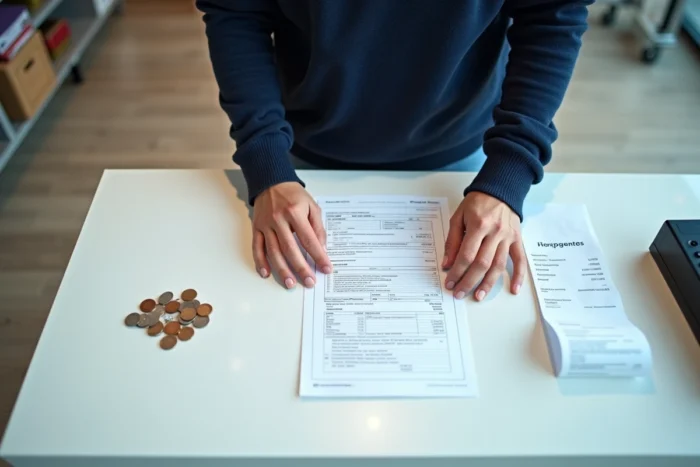
The prices charged at Carrefour kiosks depend on several parameters: color or black and white, A4 or A3 format, single copy or printing from a file. Payment is made directly at the kiosk or at the checkout depending on the stores.
To give you a useful reference, here are the criteria that affect the bill:
- Black and white vs color: a black and white print costs significantly less than a color print, sometimes in a ratio of one to three or four
- Document format: A4 remains the standard and least expensive format, while A3 incurs an additional cost
- Double-sided: printing double-sided reduces the number of pages charged, which becomes cost-effective for multi-page documents
- Volume: beyond ten pages, comparing with a dedicated reprography center may be worthwhile if you are looking for the lowest price
For show tickets purchased via Carrefour Spectacles and printed at home, a fee of 0.50 euros applies. This additional cost concerns the dematerialized printing of the ticket, not the use of the kiosk in-store.
Availability of kiosks by type of Carrefour store
Not all Carrefour stores offer the printing service. The distinction is mainly made by the size of the point of sale. Hypermarkets are the best equipped: Copy ME kiosks are installed in the shopping gallery or near the checkouts.
Carrefour Market sometimes has the service, as evidenced by recent installations in some stores. However, proximity formats like Carrefour City or Carrefour Express are rarely equipped with printing kiosks. With over 850 Carrefour Express outlets in France, concentrated in dense urban areas, this creates a paradox: customers who would most need quick access to printing in the city often have to travel to a hypermarket on the outskirts.
Before you go, check for the service’s availability on the store’s page on the Carrefour website or with a quick call.
Document scanning and email sending at the kiosks
Beyond printing and copying, the kiosks also allow you to scan a document. There are two options for retrieval: saving to a USB drive or sending by email.
Email scanning is particularly useful for digitizing a document to send to an administration. You place the document on the glass, enter the email address on the touchscreen, and the file is sent directly. No app or account creation is needed.
For sensitive documents (ID, bank statement), be sure to check that the kiosk screen no longer displays your file once the operation is complete. Most kiosks automatically delete the data after a few minutes, but getting into the habit of checking remains a good practice.
Occasional printing at Carrefour does not replace a subscription to a reprography service for regular volumes. However, it perfectly covers the need for an urgent document printed in black and white or color, without hassle and without personal equipment. Choosing the right file format and checking the kiosk’s availability in your store are the two reflexes to adopt to avoid an unnecessary trip.