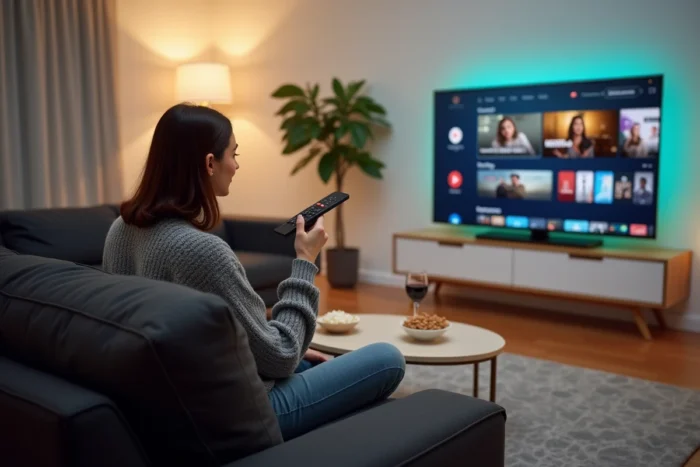
Samsung Smart TVs come with the Tizen operating system, which manages the home screen display, app installation, and communication with the local network. Understanding how this software layer works allows you to fully exploit the streaming capabilities of the television without needing an external box.
Tizen Content Hub 2024: What’s Changing for Streaming on Samsung Smart TVs
Since the 2024 TV interface update, Samsung has reorganized the home screen around a content hub. SVOD apps (Netflix, Disney+, Prime Video), FAST channels, and linear TV are no longer arranged in a simple list. The interface now offers personalized recommendations based on viewing habits, with more discreet update notifications.
In practice, the hub brings together movies and series from multiple platforms on a single screen. The television suggests content based on the active profile, which reduces the time spent navigating between apps. For this personalization to work properly, each household member must create their own Samsung profile from the TV settings.
For older models that do not receive this interface, a manual update via USB stick is still possible to refresh the firmware. The procedure can be found in the Support menu, then Software Update. This will not transform the home screen into a hub, but it will fix any compatibility issues with recent streaming apps.
To delve deeper into your TV’s setup, you can watch a movie in streaming on TV with J3M and follow the steps tailored to each generation of Samsung Smart TVs.
Wi-Fi Network and Bandwidth: The Prerequisite Most Guides Overlook
Streaming a movie continuously uses the local network. If the bandwidth is insufficient or unstable, the image deteriorates, buffering increases, and the TV automatically switches to a lower resolution.
Wired or Wi-Fi Connection: What Real Impact on Quality
An Ethernet cable remains the most stable connection for a TV. 5 GHz Wi-Fi offers sufficient bandwidth for most uses, but the more crowded 2.4 GHz band regularly causes micro-cuts in the evening when all household devices are connected.
Recent Samsung Smart TVs support either Wi-Fi 5 or Wi-Fi 6, depending on the model. To check the band in use, the Settings menu, then General, then Network displays the active frequency. If the TV is connected at 2.4 GHz while the router also broadcasts at 5 GHz, forcing the switch significantly improves fluidity.
Testing Bandwidth Directly from the TV
Tizen includes a web browser. Opening a speed test site from this browser provides a more reliable measurement than from a smartphone, as it accurately reflects what the TV receives. A stable download speed is necessary to maintain good image quality without stuttering.
- Placing the router within five meters of the TV, or using a dedicated Wi-Fi repeater, reduces latency.
- Temporarily disabling ongoing downloads on other devices on the network frees up bandwidth.
- Using a Cat 5e or higher Ethernet cable ensures a constant speed without radio interference.
FAST Channels on Samsung TV Plus: Free Movies Without Subscription
FAST platforms (Free Ad-Supported Streaming Television) broadcast movies and series funded by advertising, without subscription. Samsung TV Plus, Pluto TV, and Rakuten TV offer thematic channels accessible directly from the TV’s home screen in France.
Samsung TV Plus is pre-installed on all Samsung Smart TVs connected to the Internet. The catalog includes channels dedicated to movies, documentaries, and series, organized by genre. The app requires no registration or payment information.
Pluto TV and Rakuten TV can be installed from the Samsung Apps Store in seconds. These apps enrich the free catalog with recent movies broadcast in rotation. The trade-off remains the advertising, inserted at regular intervals like traditional television.
This option is particularly appealing to households that do not want to accumulate multiple SVOD subscriptions. FAST channels cover a wide range of genres at no additional cost, making them a useful complement to paid platforms.

Streaming from a Smartphone to a Samsung TV: AirPlay and SmartThings
Watching a movie stored on a phone or launched from a mobile app on the big screen in the living room involves two main protocols on Samsung Smart TVs.
AirPlay for Apple Devices
Compatible Samsung Smart TVs natively support AirPlay 2. From an iPhone or iPad, simply open the control center, select “Screen Mirroring,” and choose the Samsung TV from the list. The TV and smartphone must be connected to the same Wi-Fi network.
SmartThings for Android Devices
The SmartThings app, developed by Samsung, allows you to detect the TV on the local network and send content to it. It also serves as a remote control, simplifying text entry during searches in streaming apps.
- SmartThings works with the majority of Android smartphones, not just Galaxy devices.
- The Smart View feature, integrated into Samsung phones, mirrors the mobile screen on the TV with a single tap.
- For locally stored videos, the app allows you to browse the phone’s files and play them directly on the TV.
The quality of the stream directly depends on the stability of the local network. A saturated network causes a delay between the image and sound, especially during high-resolution screen mirroring.
The choice between an SVOD subscription, a free FAST channel, or streaming from a mobile device primarily depends on the content sought and the budget. Recent Samsung Smart TVs, thanks to Tizen and the content hub, centralize these three access modes on a single screen, making the transition from one to another almost seamless.